Guide
Your first lesson in the classroom
Your teacher is waiting for you in the 'kilma' classroom. This guide shows you how to find your lesson, check your camera and sound, talk and write together, and what happens when the lesson ends.
Find your lesson
Your lessons live under Classes. Ten minutes before the start, the classroom opens and 'kilma' invites you in.
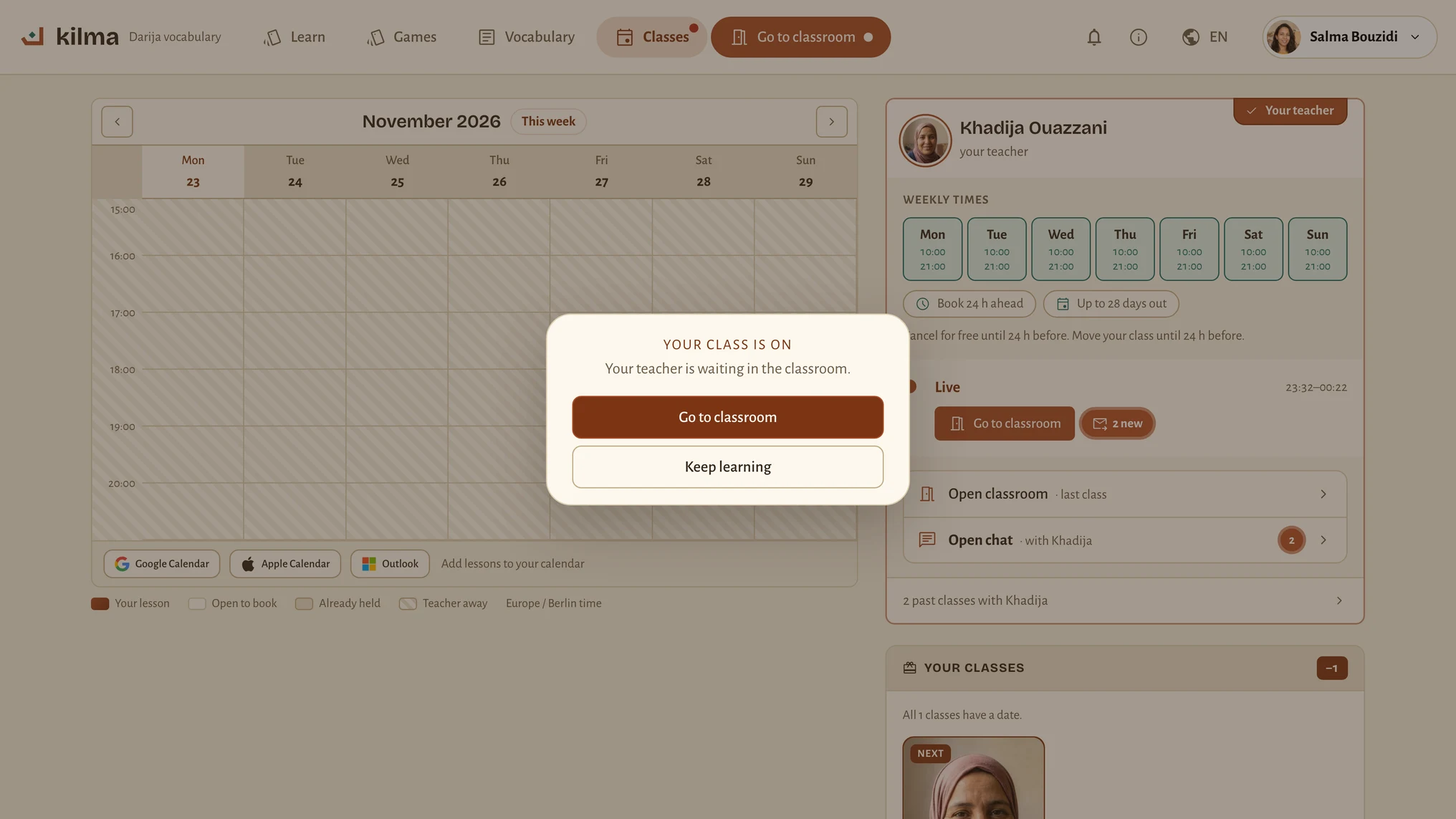
Click Go to classroom, and you're in the lobby of your lesson.
Keep learning closes the window, so you finish your card first.
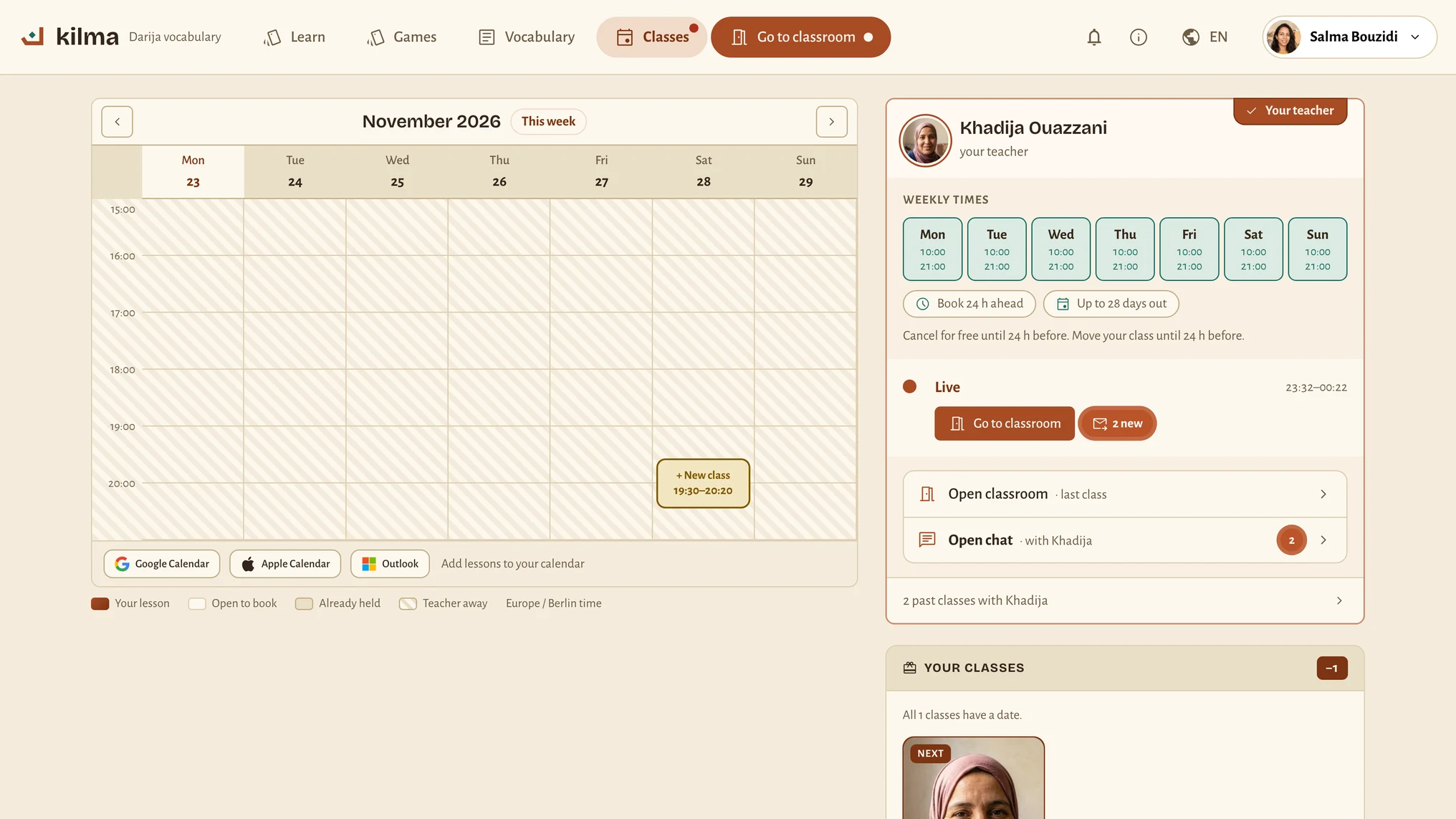
Under Classes, Go to classroom sits right on your lesson.
At the top, the same button counts down with you on every page.
- Open Classes and click Go to classroom on your lesson. The button appears ten minutes before the start.
- While you learn, a small window reminds you: Almost time ten minutes before, Your class is on at the start. Click Go to classroom, or Keep learning to finish your card first.
- At the top of every page, Go to classroom shows a small countdown. The way in is always one click away.
- An email reminds you up to a day before. With the app on your phone, a push message follows ten minutes before the start.
Check your camera and sound
Before you step in, the lobby gives you a calm moment to check your camera and microphone.
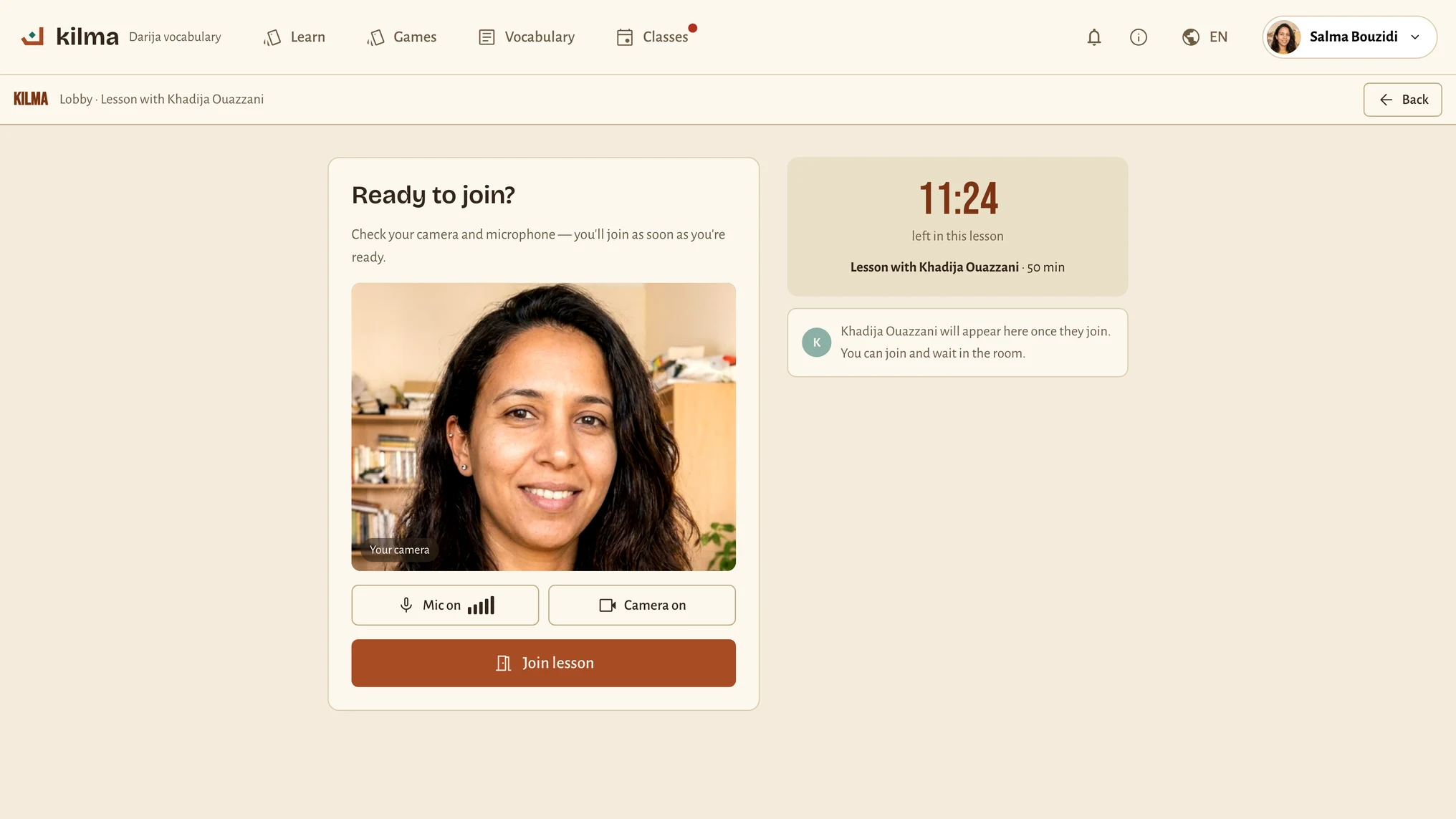
Your camera shows your picture, just as your teacher will see it.
The lobby is your calm moment to check camera and microphone.
Say a few words: the bars next to Mic on move with your voice.
Camera on switches your camera off and on again. Mic on does the same for your microphone.
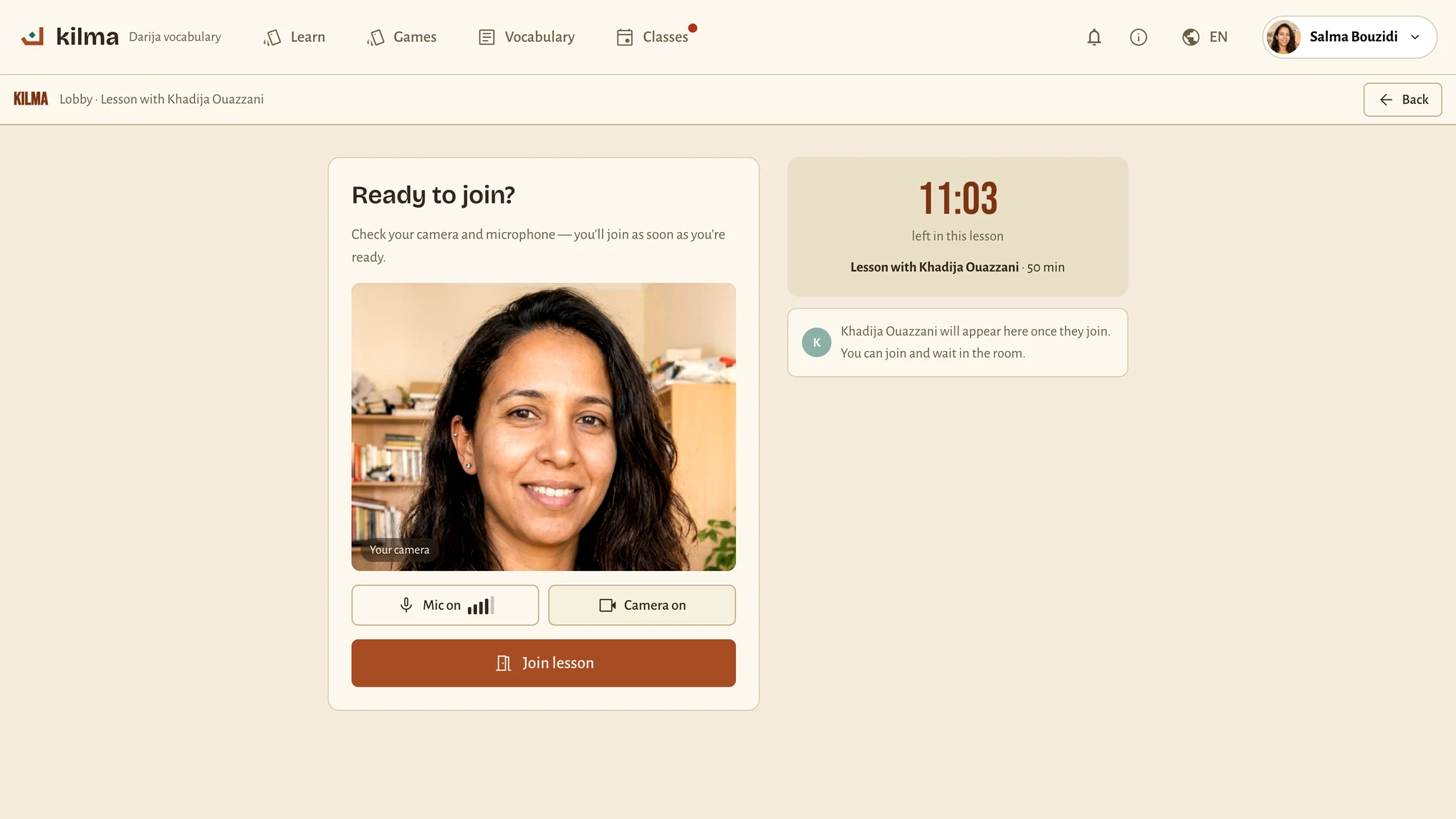
The clock shows the time of your lesson.
Ready? Join lesson takes you into the room.
- The first time, your browser asks for your camera and microphone. Click Allow, so your teacher sees and hears you.
- Your camera shows your picture right away. Say a few words: the bar next to Mic on moves with your voice.
- Mic on and Camera on switch each one off and on again, in the lobby and in the room.
- On the right, the clock shows the time of your lesson, and you see whether your teacher is already there.
- Ready? Click Join lesson. You can also join first and wait for your teacher in the room.
- Clicked Block by mistake? Allow camera and microphone for kil.ma in your browser settings, then reload the page.
Talk with your teacher
In the room, you and your teacher appear in two round video tiles. Just talk, like on any video call.
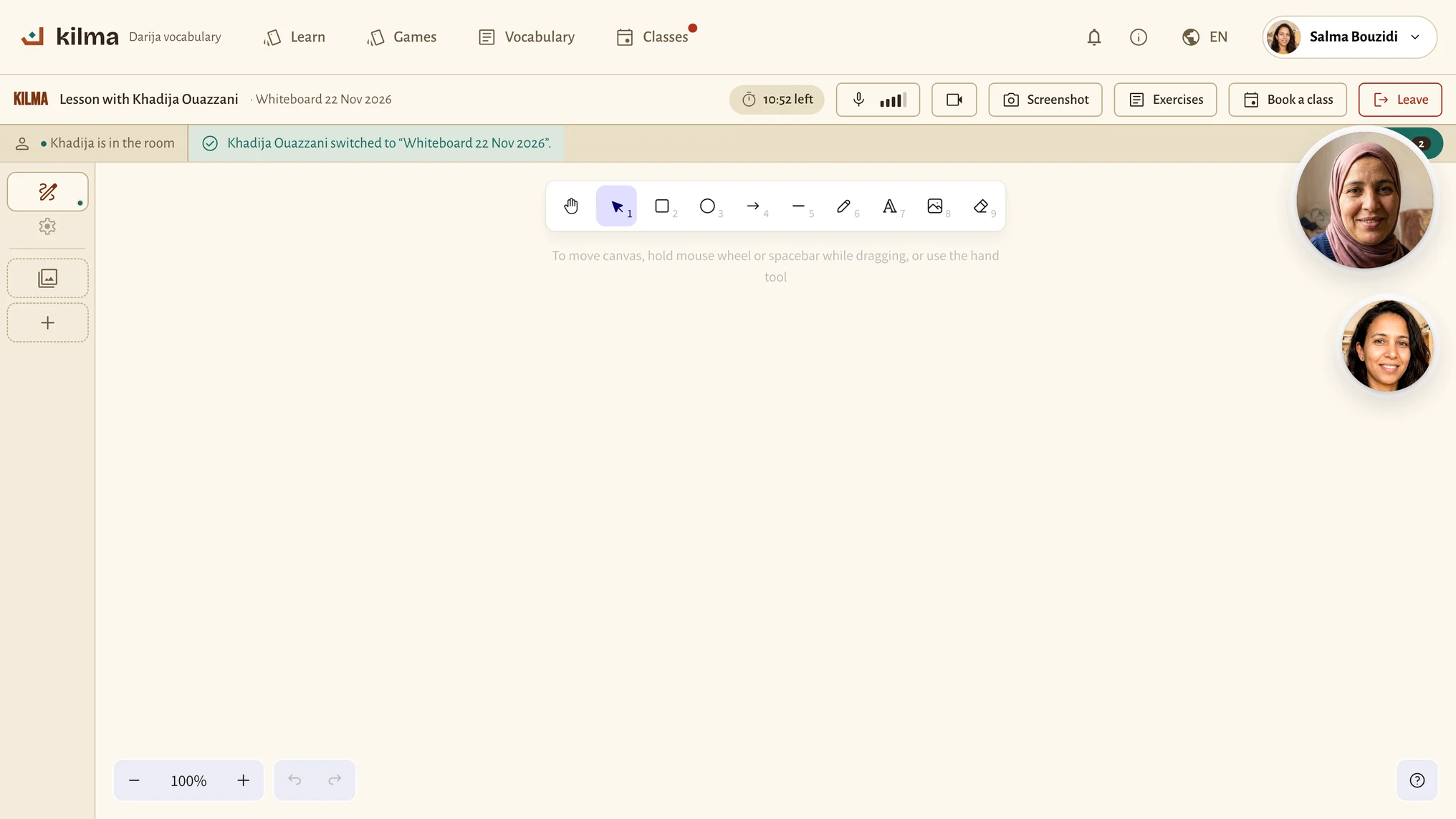
Your teacher appears in a round video tile. Drag it to a free spot.
Your own tile shows you, just as your teacher sees you.
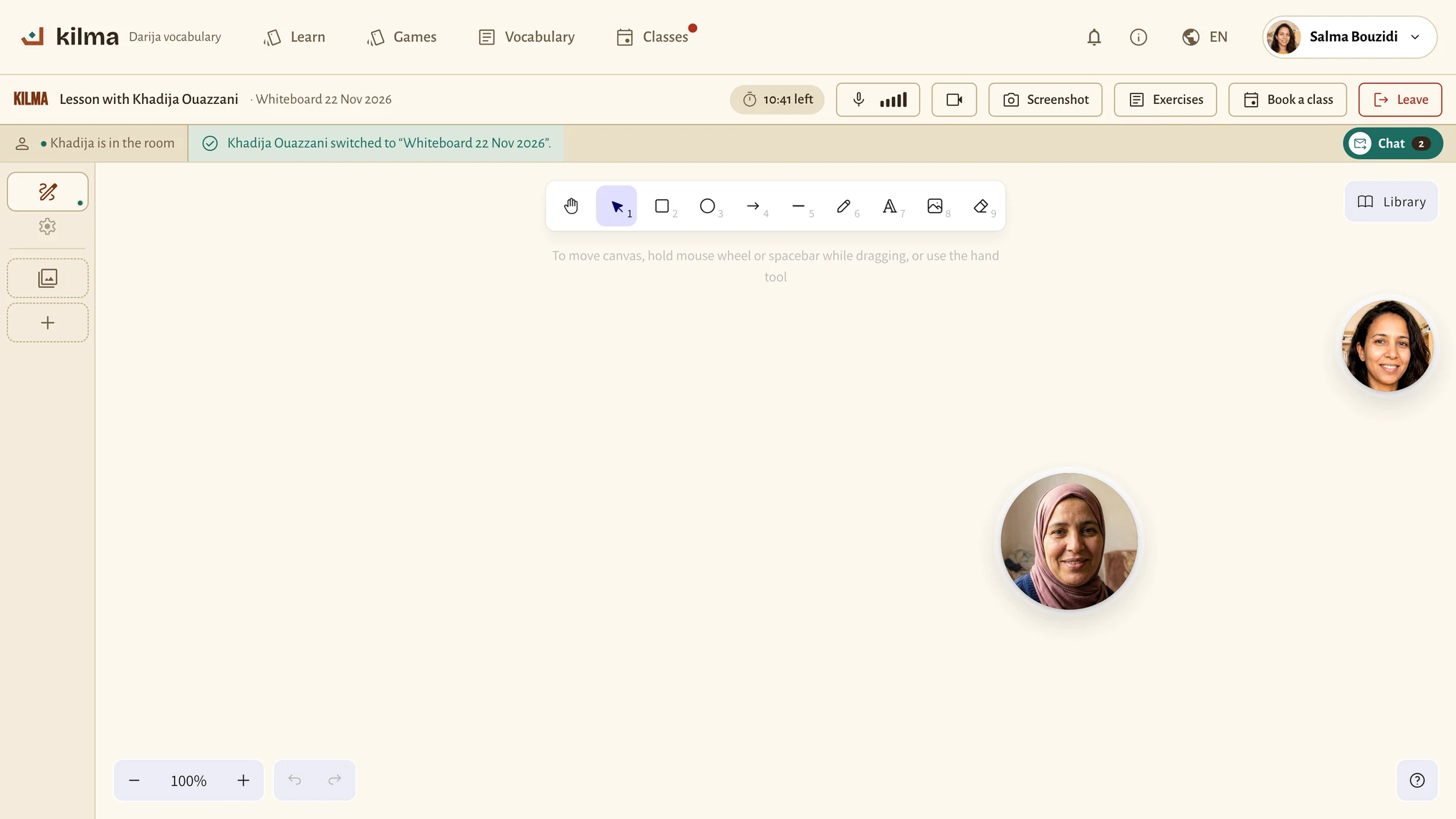
The time left in your lesson.
Mute and unmute your microphone.
Turn your camera off and on.
Leave ends the call. In the last ten minutes, it wraps up your lesson.
This line tells you that your teacher is in the room.
- Drag a tile to a free spot. Pull its edge to make it bigger or smaller.
- The bar at the top holds everything for the call: the time left, your microphone, your camera and Leave.
- Just below, a short line tells you that your teacher is in the room.
- Left the room by accident? Click Back to classroom under Classes, and you're right back in.
Write together on the whiteboard
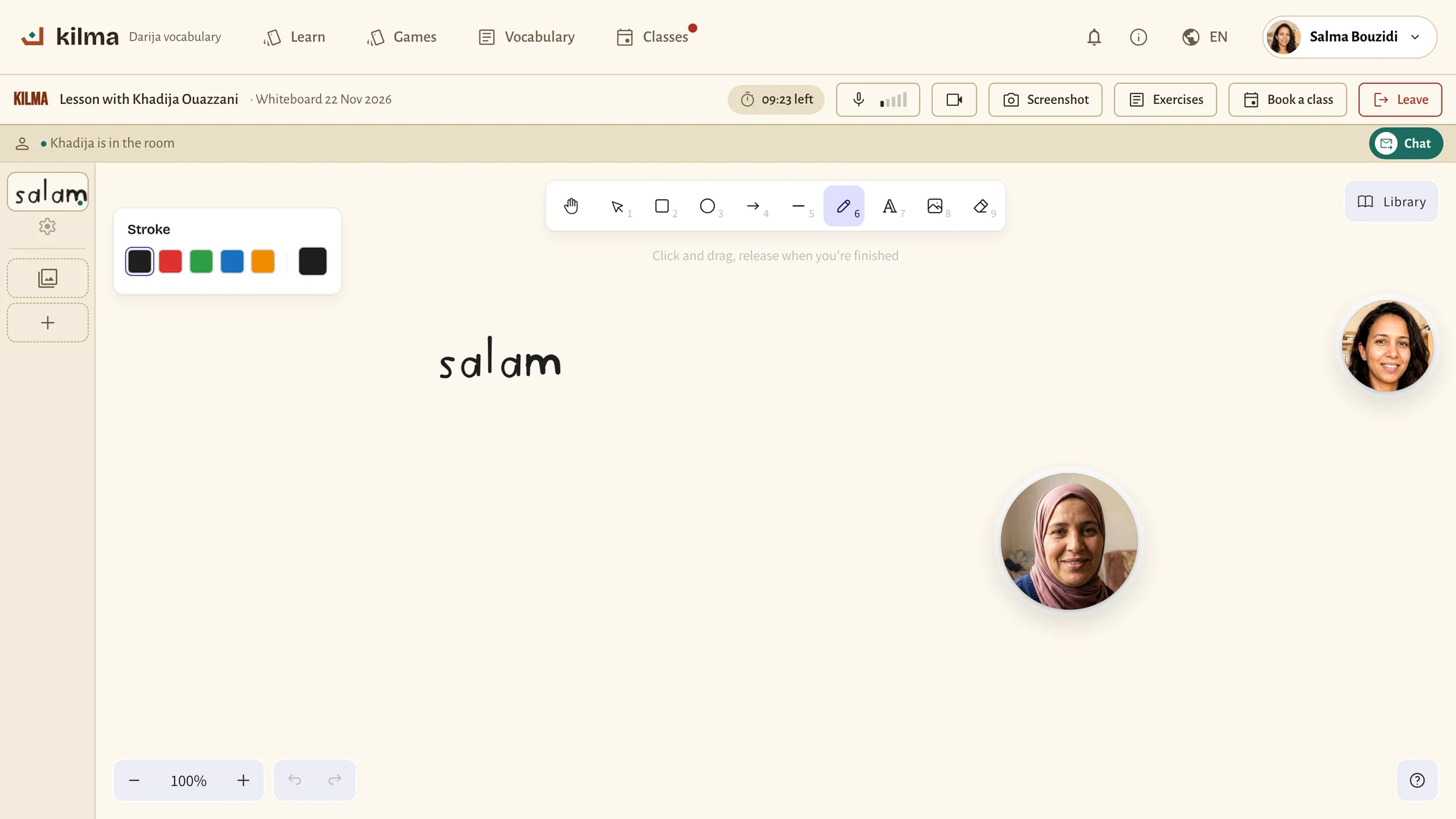
The whiteboard is your shared board. Your teacher writes, you see every stroke live, and you write along.
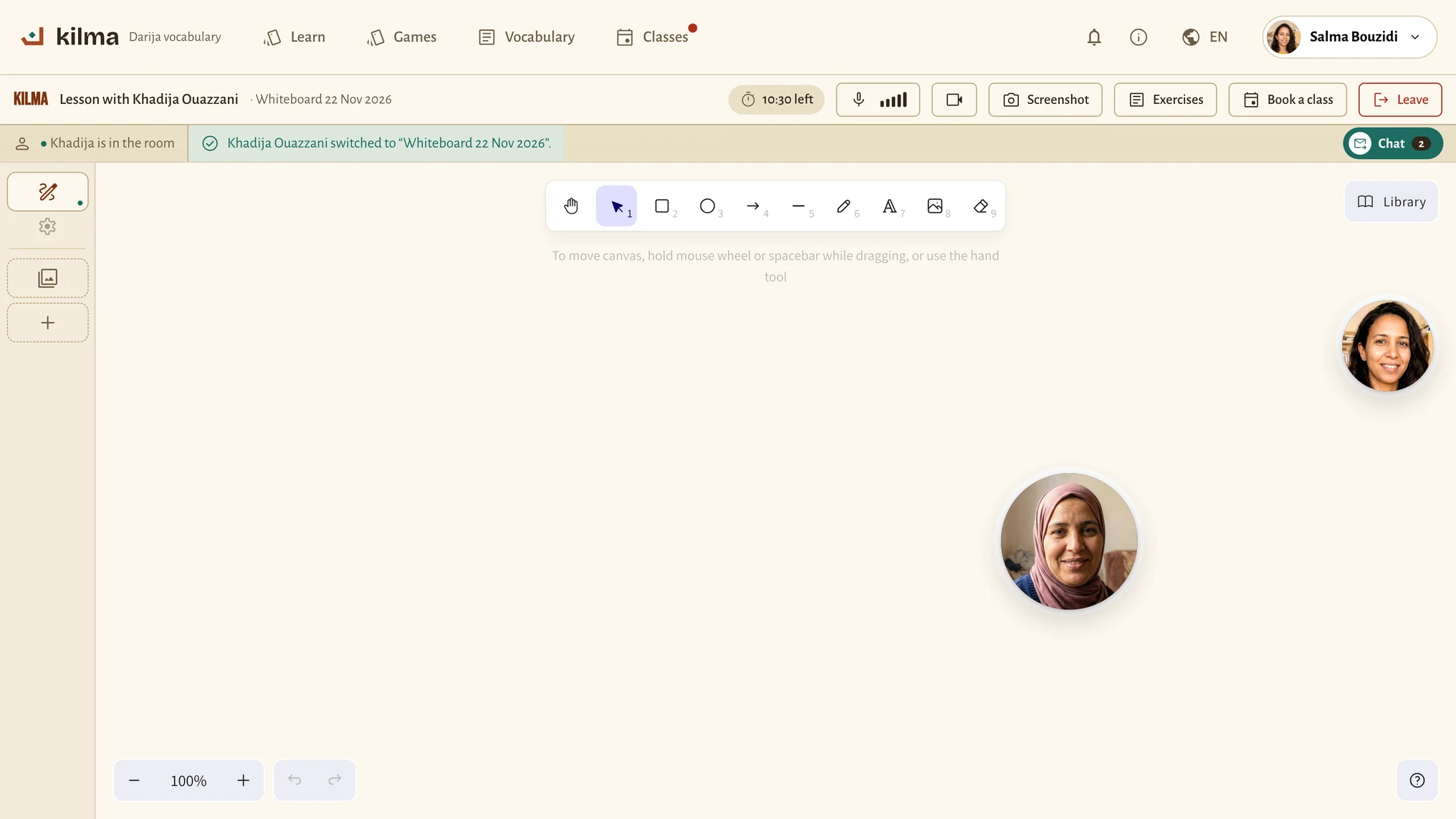
Pick the pen and write. Your teacher sees every stroke live.
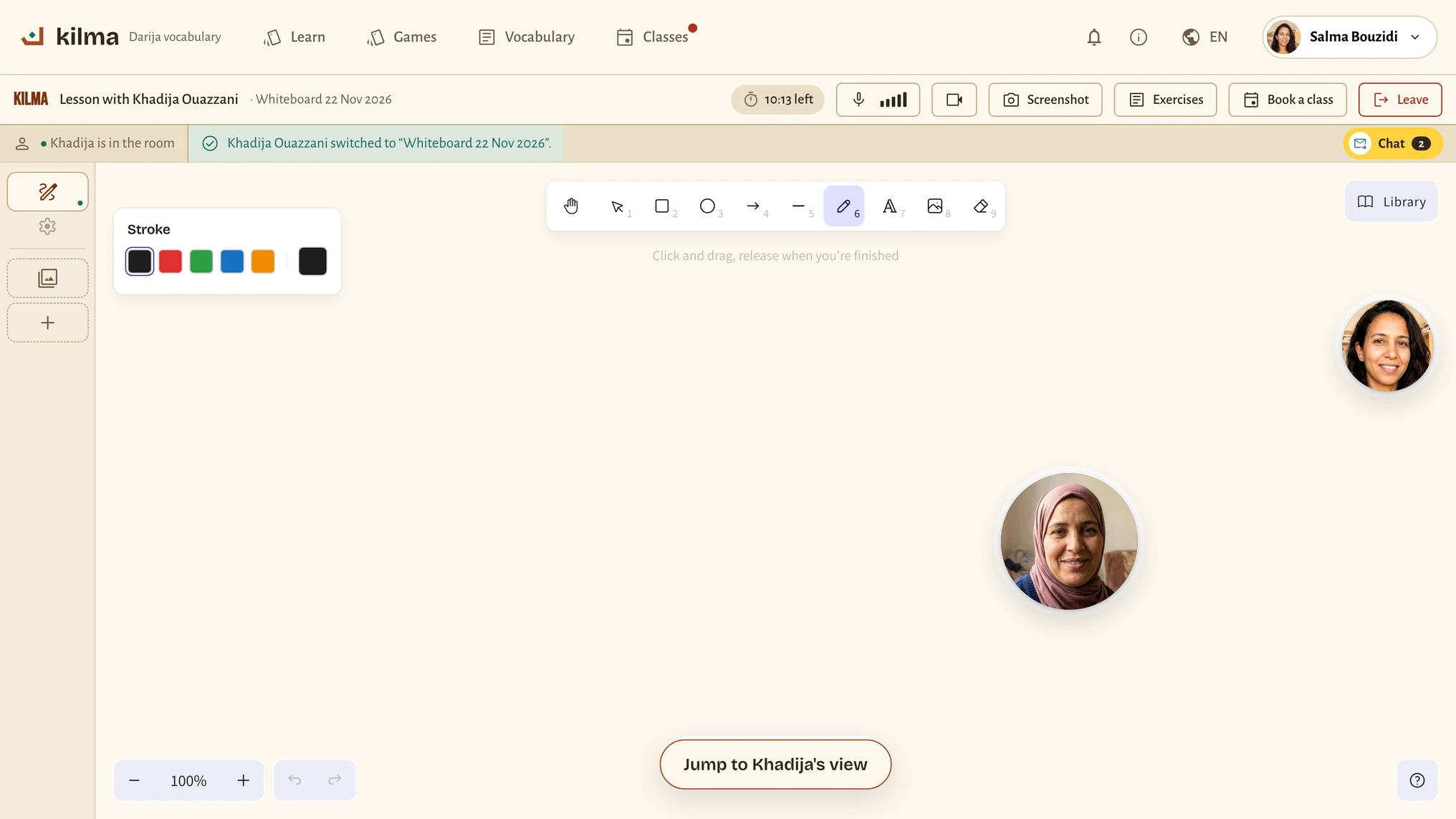
Scrolled on your own? This button takes you back to your teacher's view.
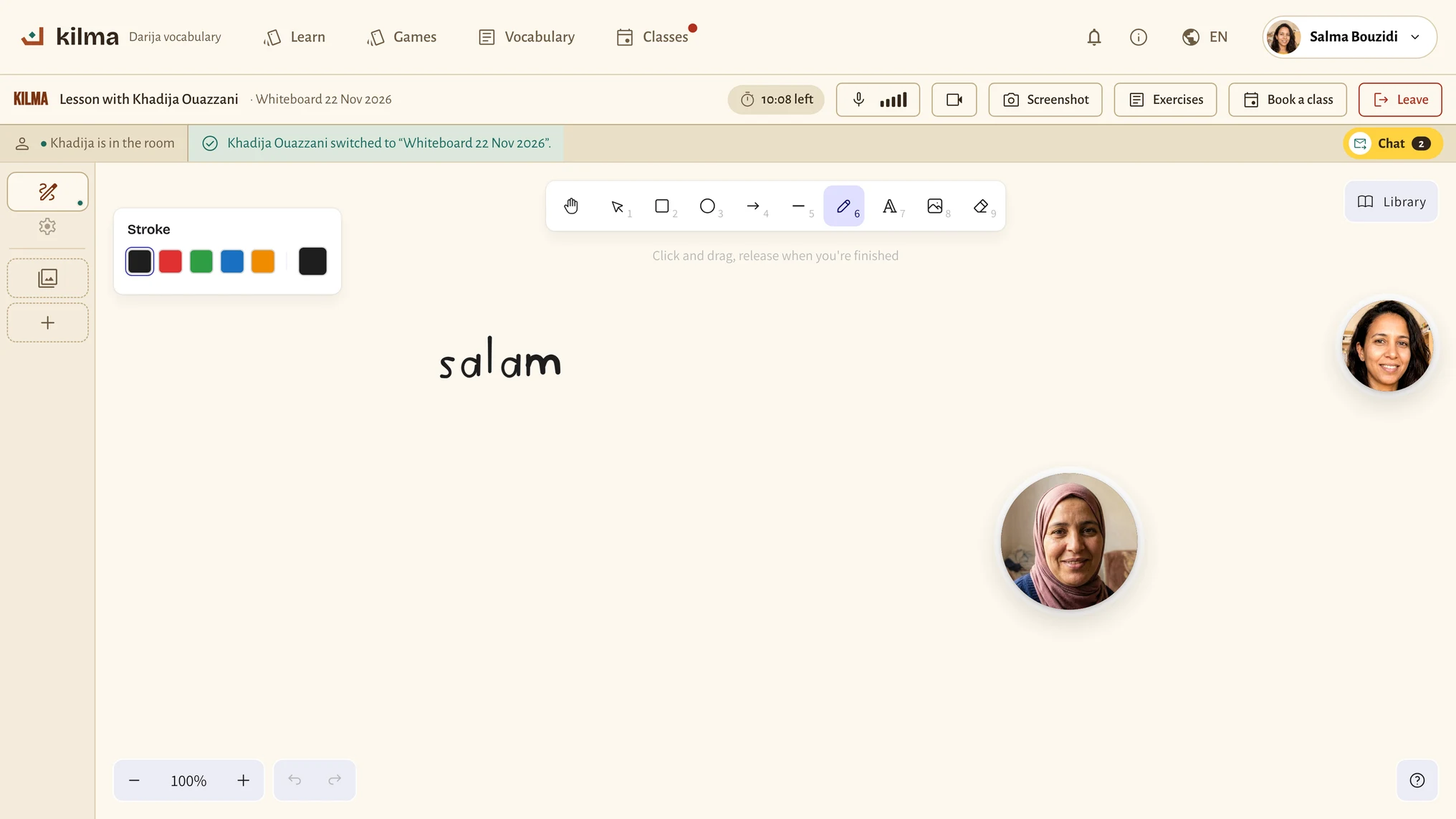
Screenshot saves the board as it is, ready for you after the lesson.
- You have the same tools as your teacher: pen, text, shapes, arrows and the eraser.
- When your teacher switches boards or scrolls, your view follows. Scroll on your own anytime, then click the button at the bottom to jump back to your teacher's view.
- The tabs on the left hold every document of your lesson. Earlier whiteboards keeps the boards from your past lessons.
- Screenshot saves the board as it is right now, so you find it again after the lesson.
Chat during the lesson
Want to share a word, a link or a file? Click Chat and write to your teacher.
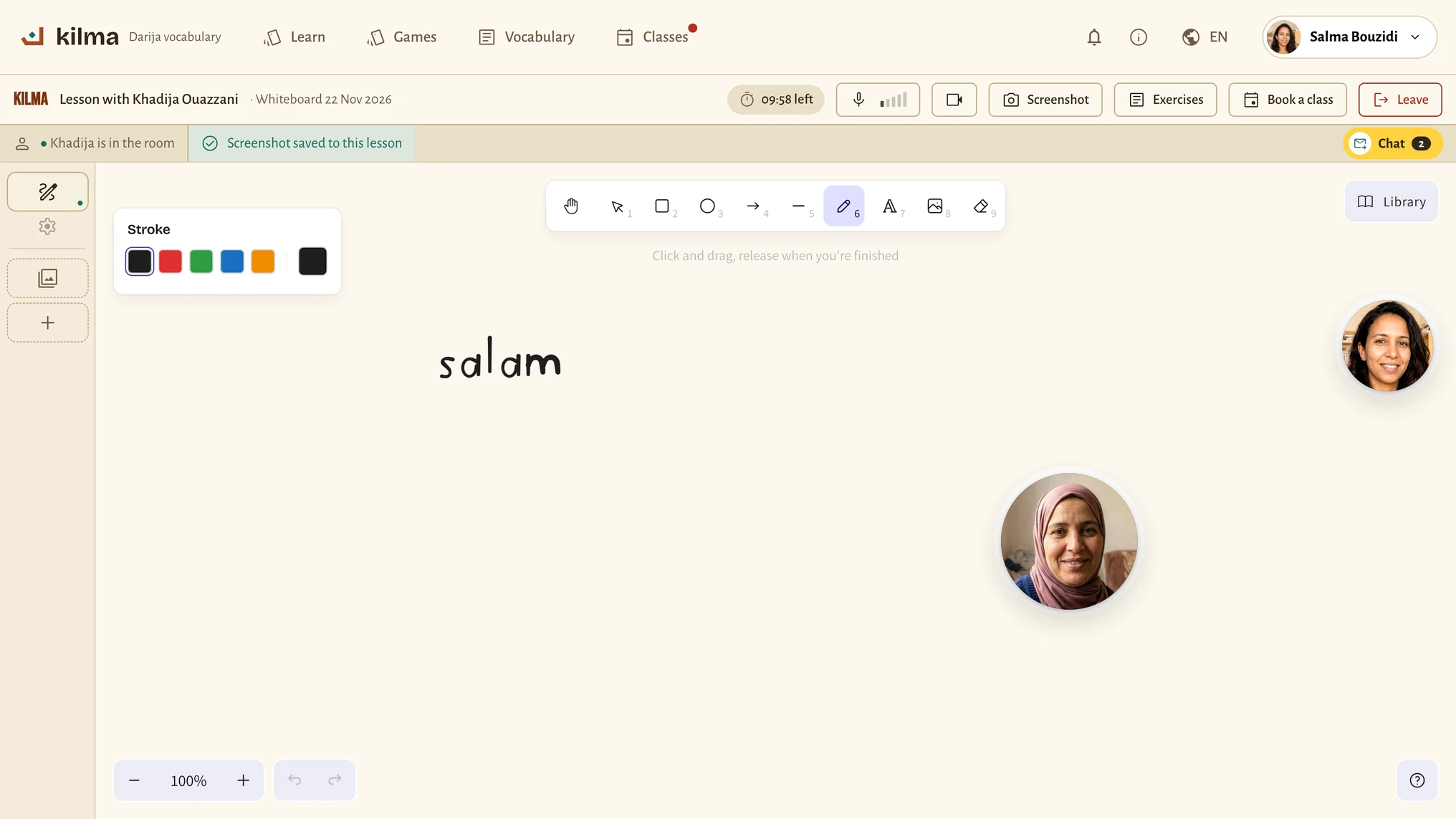
Chat opens the chat with your teacher.
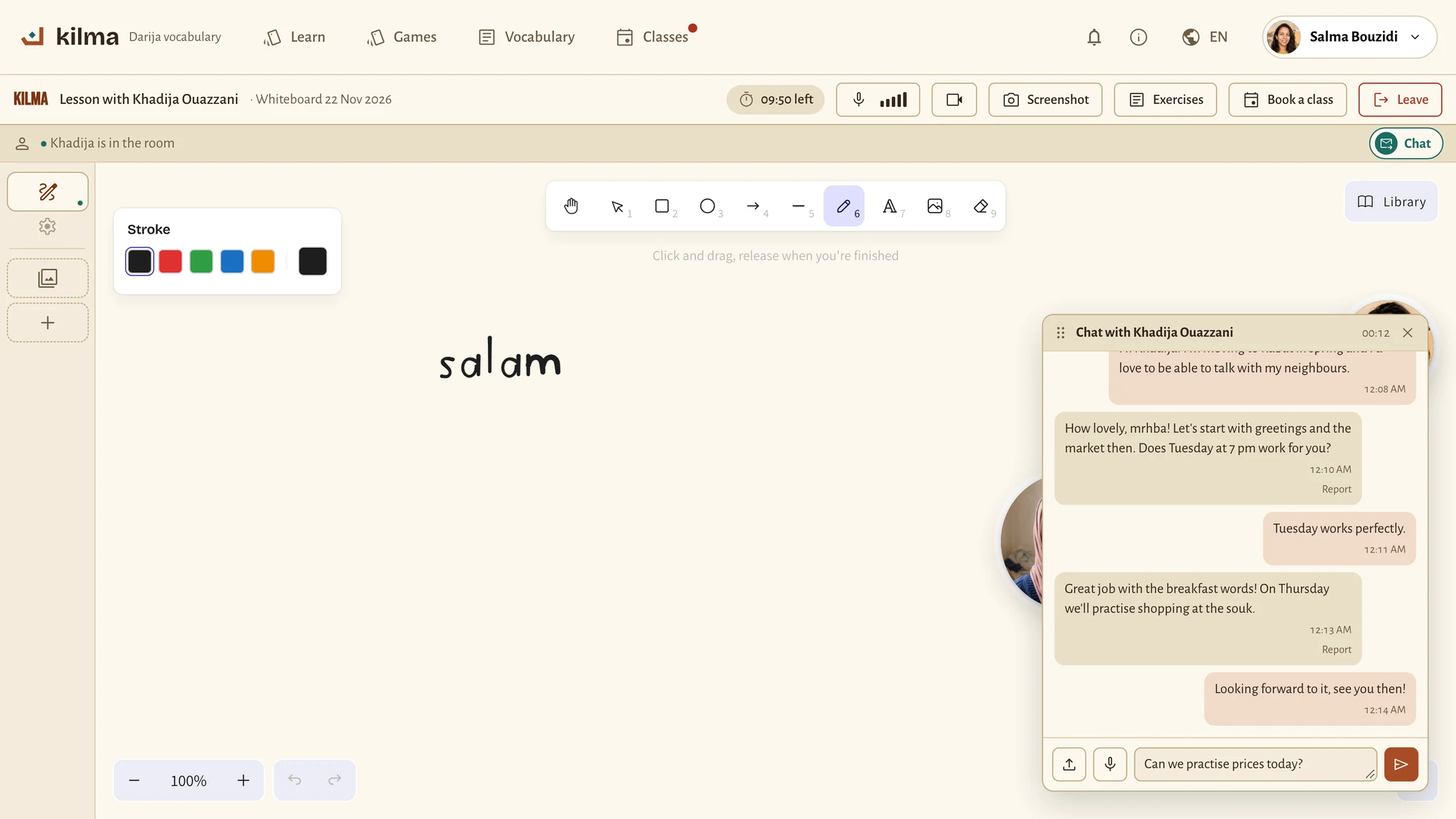
Write your message and click Send.
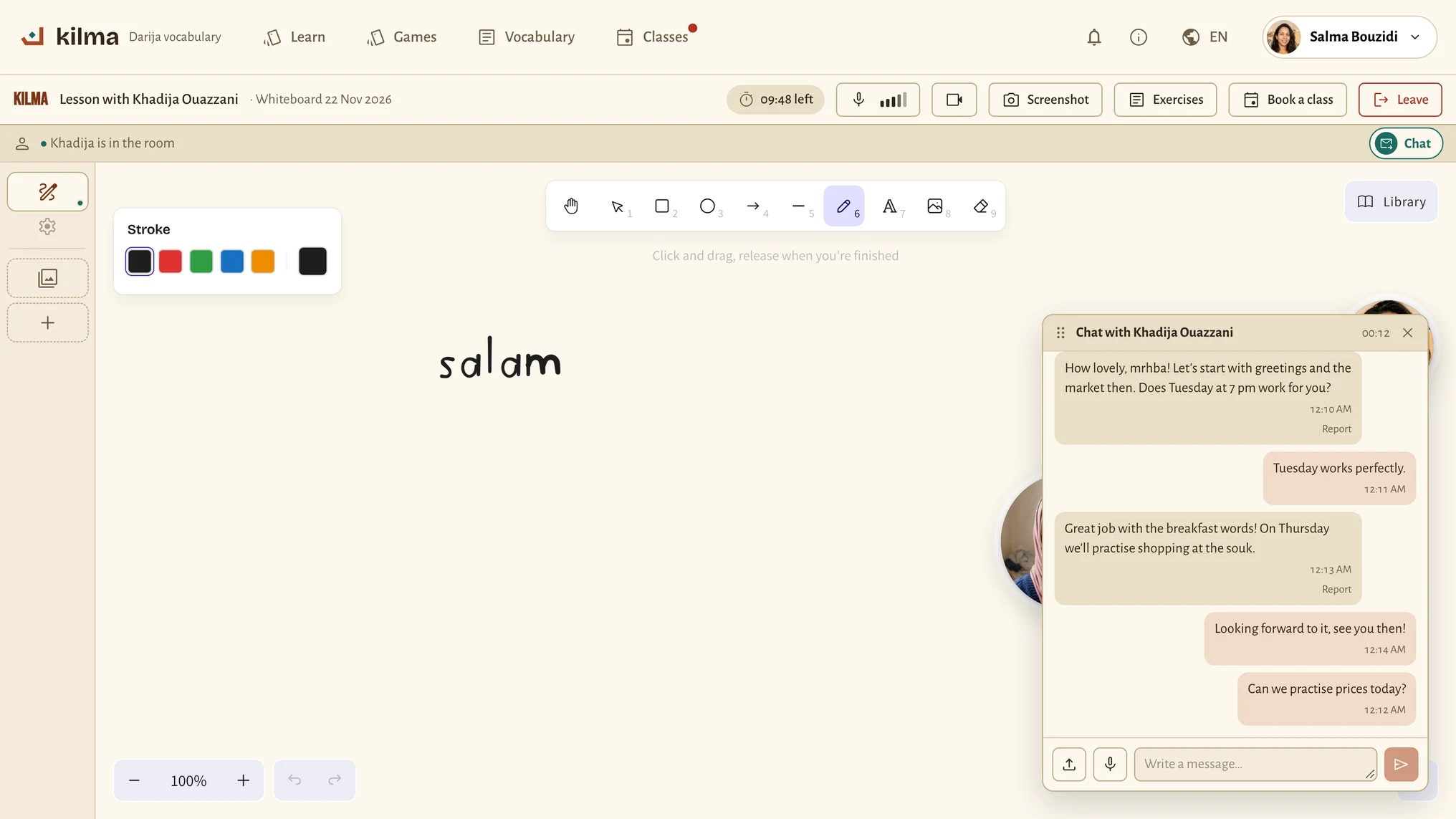
Attach a file of up to 10 MB.
Close the chat window anytime. Your messages stay with you.
- The chat opens in a small window that you can move and resize. Write your message and click Send.
- It's the same chat you know from Classes, so every message stays with you after the lesson.
- Attach a file of up to 10 MB. Files stay until the lesson ends, so save the ones you want to keep.
New words arrive live
When your teacher adds a word to your homework, it pops up at the top right with the soft ring of a tea glass.
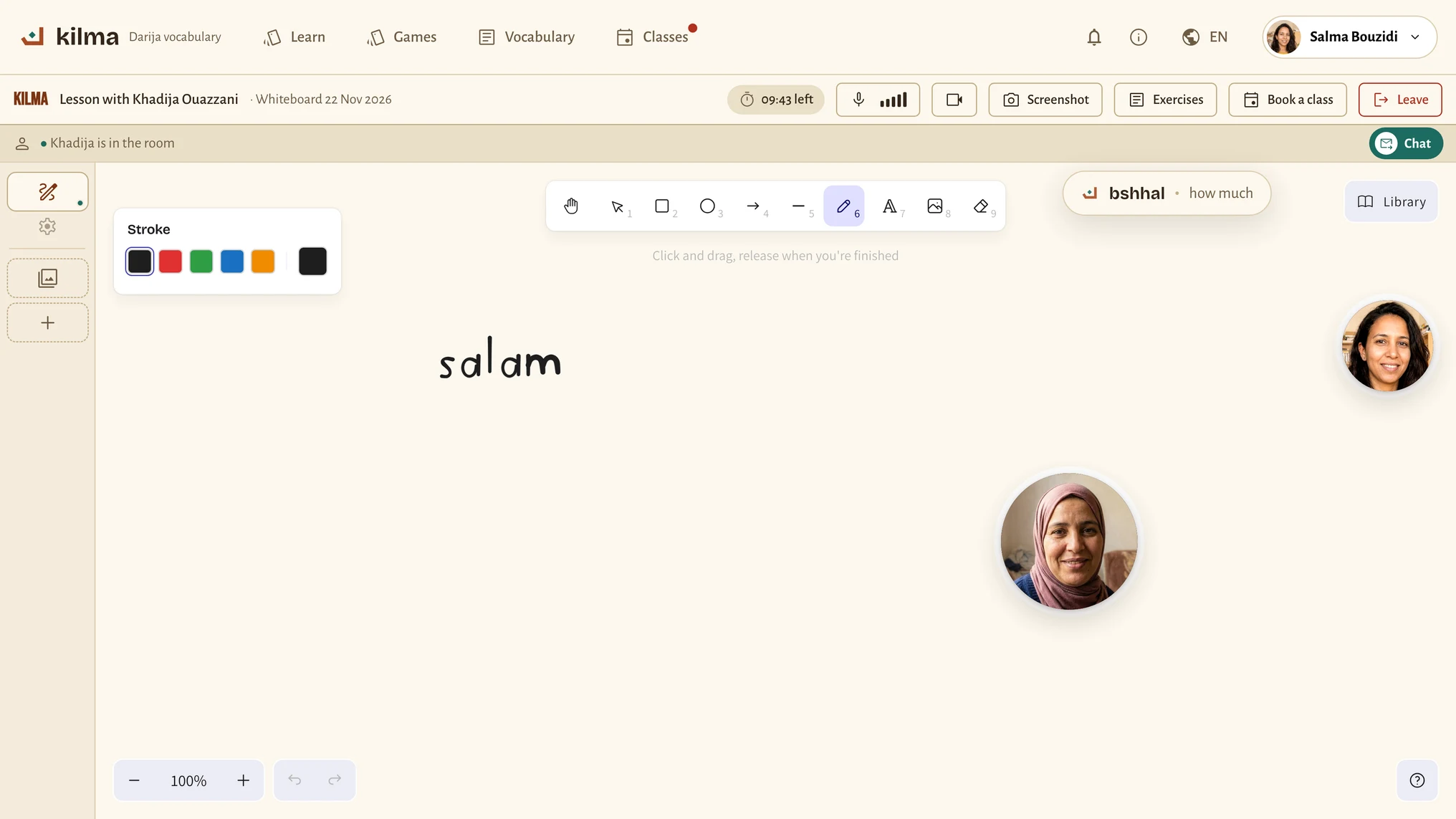
A new word for your homework, with its meaning. It pops up for a few seconds.
The card shows the Darija word and its meaning for a few seconds. Keep your focus on the lesson: the word is already saved in your homework.
The lesson ends
In the last ten minutes, click Leave, and your lesson wraps up with a quick rating.
In the last ten minutes, click Leave, and your lesson wraps up.
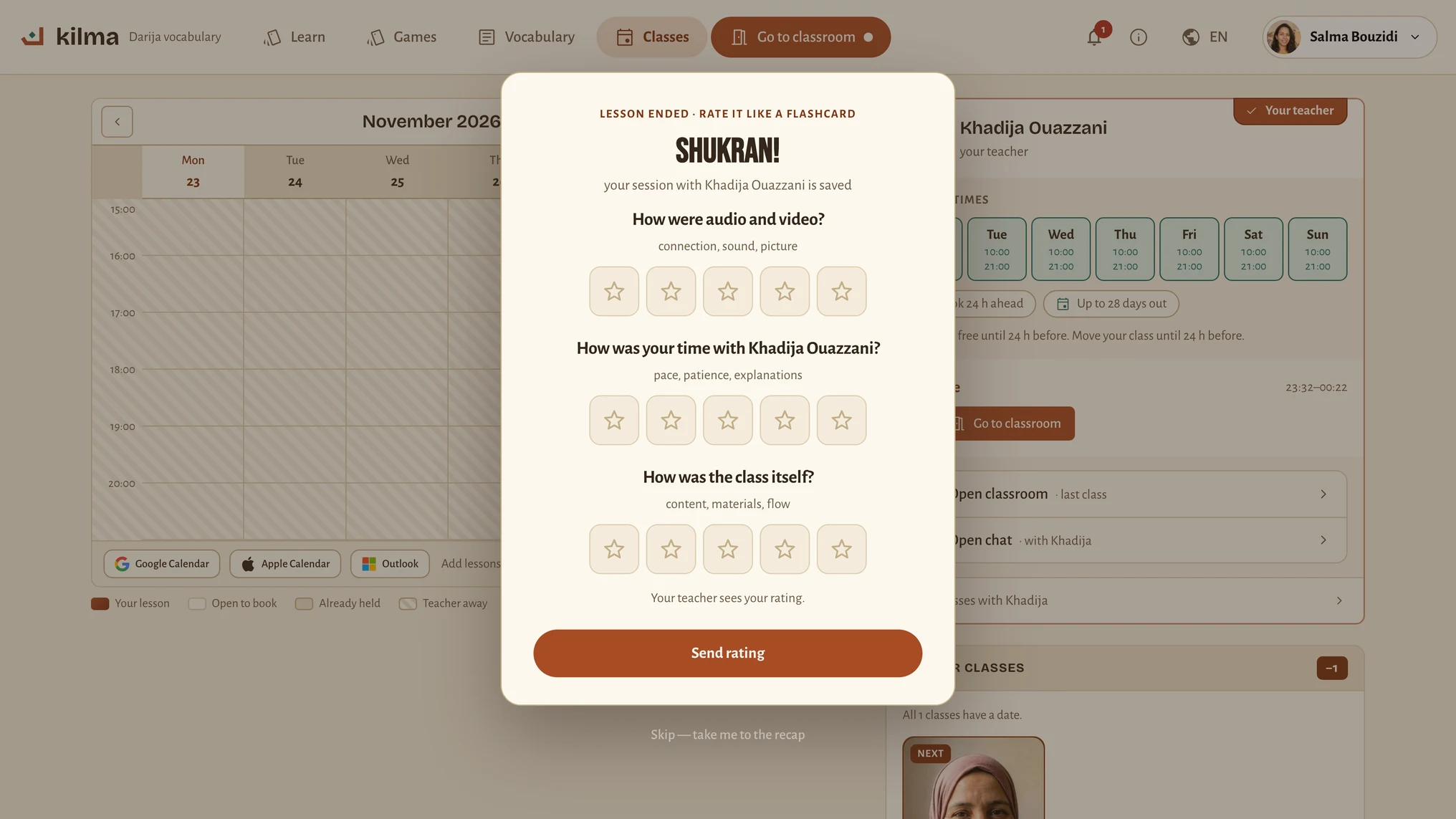
'kilma' asks you for a quick rating, like a flashcard.
Give up to five stars for each question.
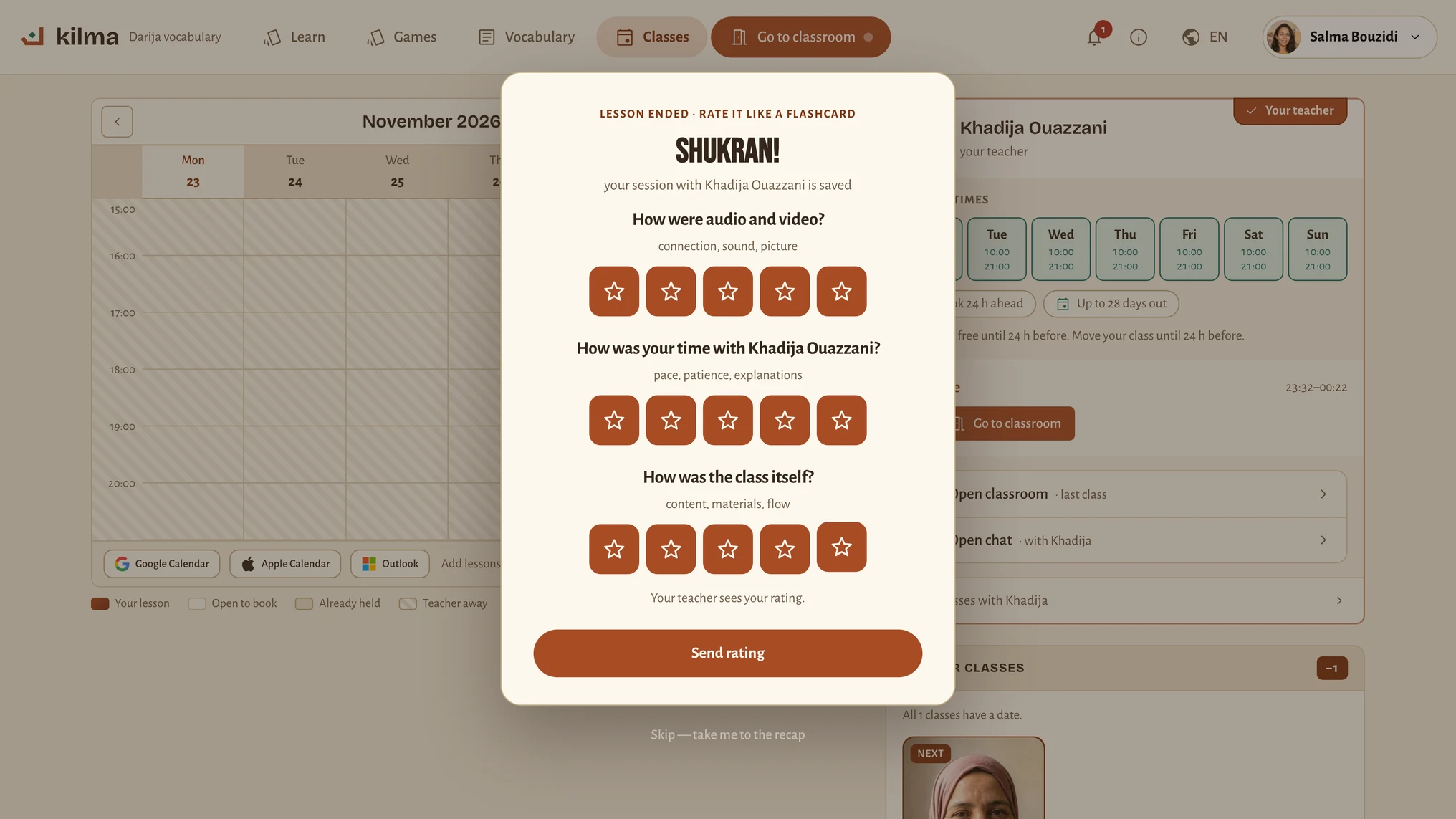
Send rating shares your stars with your teacher.
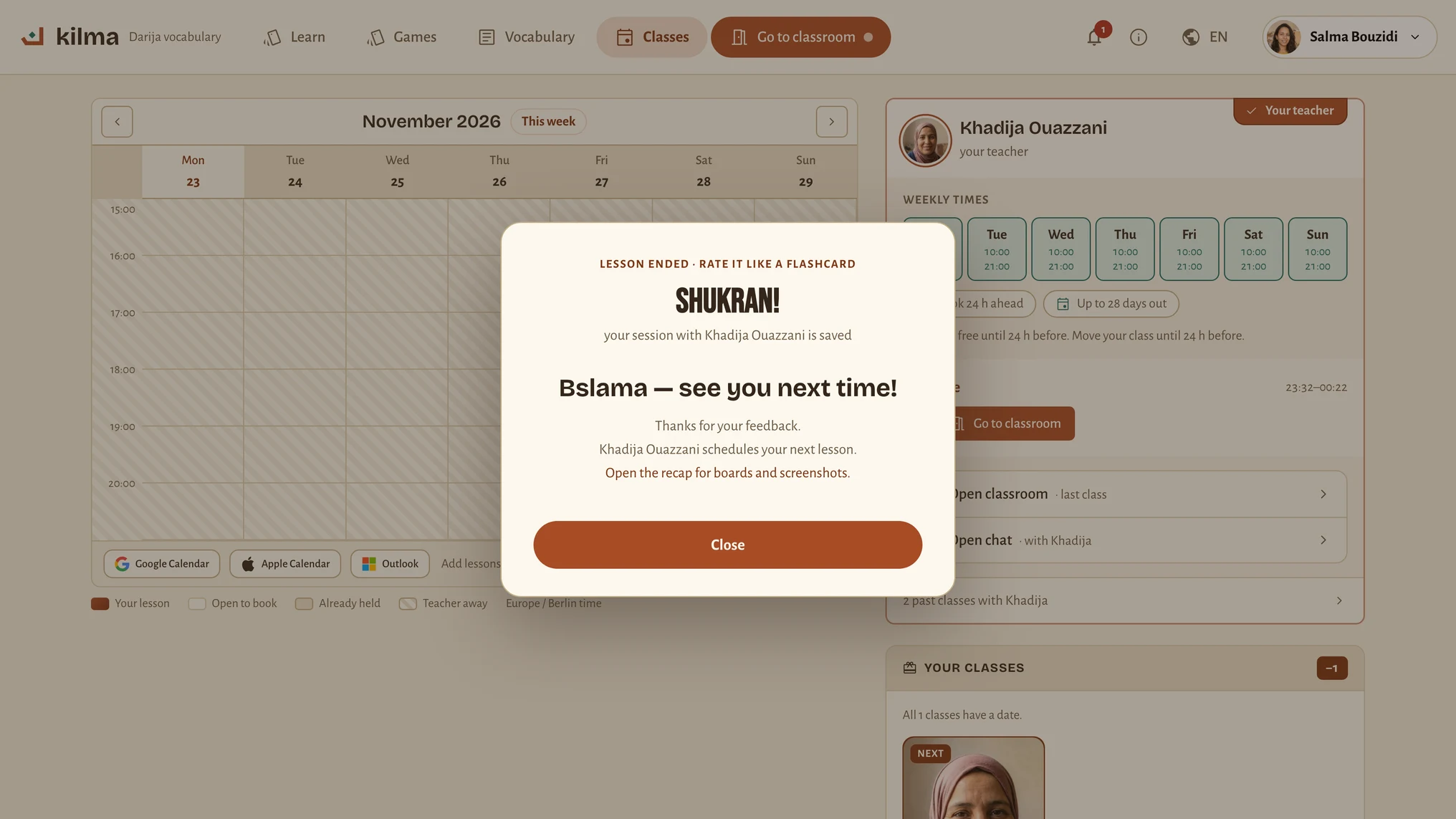
All set: your teacher plans your next lesson.
Close takes you back to Classes.
- Give up to five stars for audio and video, for your time with your teacher and for the class itself, then click Send rating. Your teacher sees your rating.
- In a hurry? Skip the rating and go straight to the recap.
- After the lesson time, the room stays open for a few more minutes and then closes by itself. Your boards and screenshots are saved.
- The recap of every lesson keeps its boards and screenshots, ready whenever you want to look back.
Your homework is waiting
Right after the lesson, your teacher gives you the words from your class as homework.
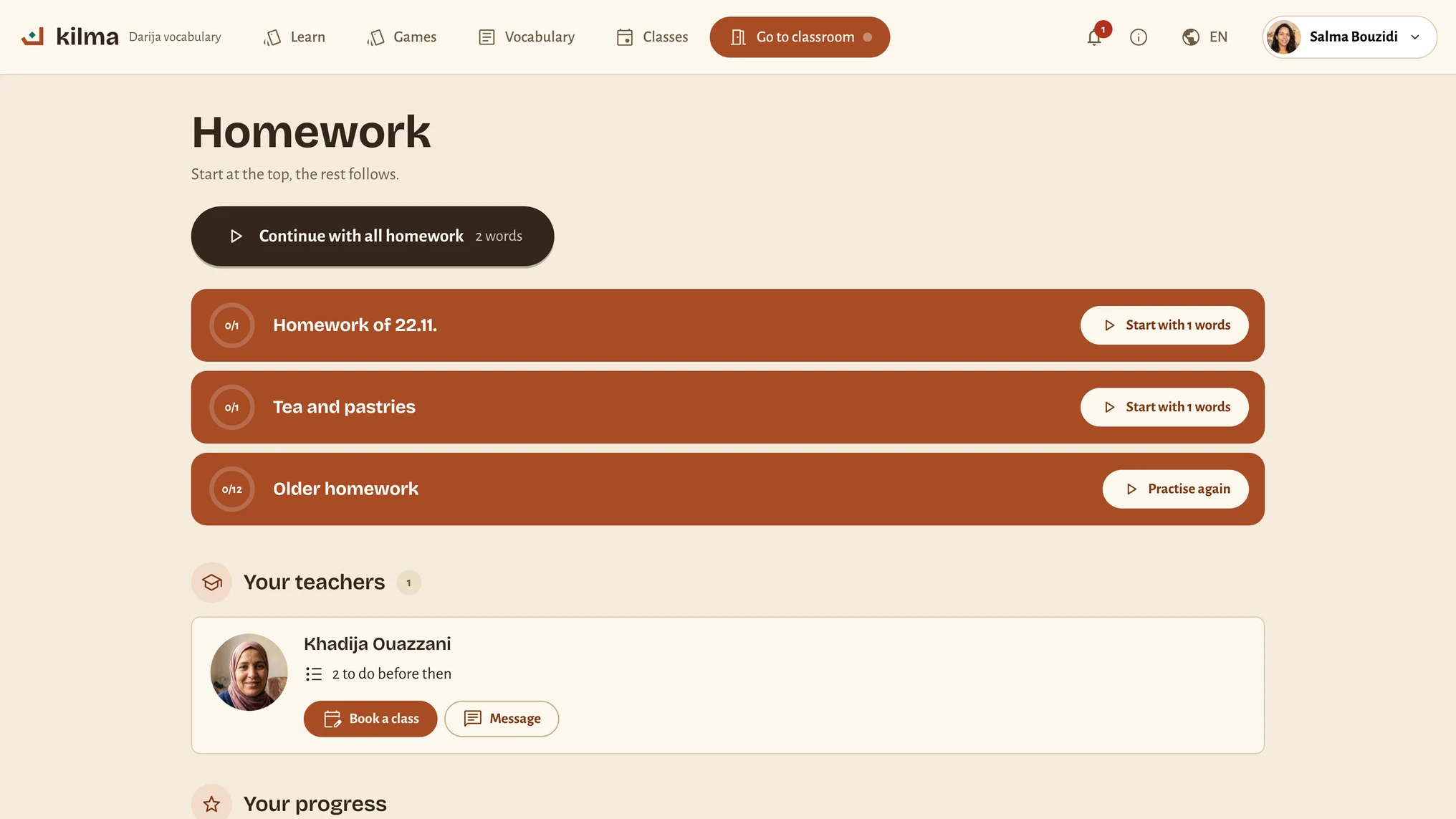
Click Start with and learn the words from your lesson.
- An email tells you, and with the app a push message too. Your homework appears under Homework.
- Click Start with and learn the words on your computer or on your phone.
- The day before your next lesson, 'kilma' gives you a gentle reminder. A few minutes are enough.
- Everything about homework: Working with homework.
On your phone
Joining from your phone? You talk face to face on a split screen: your teacher at the top, you below.
- Your microphone, your camera, the camera switch and Leave sit in the bar at the bottom.
- Whiteboard and chat live on a computer. For a lesson with lots of writing, join from one.
Questions and answers
When can I enter the room? Ten minutes before the start. After the scheduled end, the room stays open for a while and then closes by itself.
I'm running late. What now? Join right away, the room is open for you. Your lesson keeps its booked time, so the clock counts from the start.
Sound or picture are stuck. What now? Reload the page, and the call reconnects by itself. Your boards stay safe. Still stuck? Write to your teacher in the chat.
Can I cancel a lesson? Yes, until it starts. Cancel at least 24 hours ahead, and it stays free. Closer to the start, the lesson uses one credit, because your teacher set the time aside for you.
How do I get my next lesson? Your teacher schedules it, and you find it under Classes. In the room, Book a class shows your teacher's free times as well.